Add folders
Choose the Mac folders you want to search, including cloud-synced folders that are available locally through Finder.
Find Text for macOS
Choose folders, build a local search workspace, and find files by name, type, content, or words you want to exclude. Pro adds Optical Character Recognition (OCR) for scanned PDFs, screenshots, English newspapers, old books, and images.
Workflow
Find Text is built for people with real document folders: project archives, research notes, client folders, manuals, invoices, scans, and reference material.
Choose the Mac folders you want to search, including cloud-synced folders that are available locally through Finder.
Let Find Text prepare those folders for fast local search. Refresh when files are added, removed, renamed, or changed.
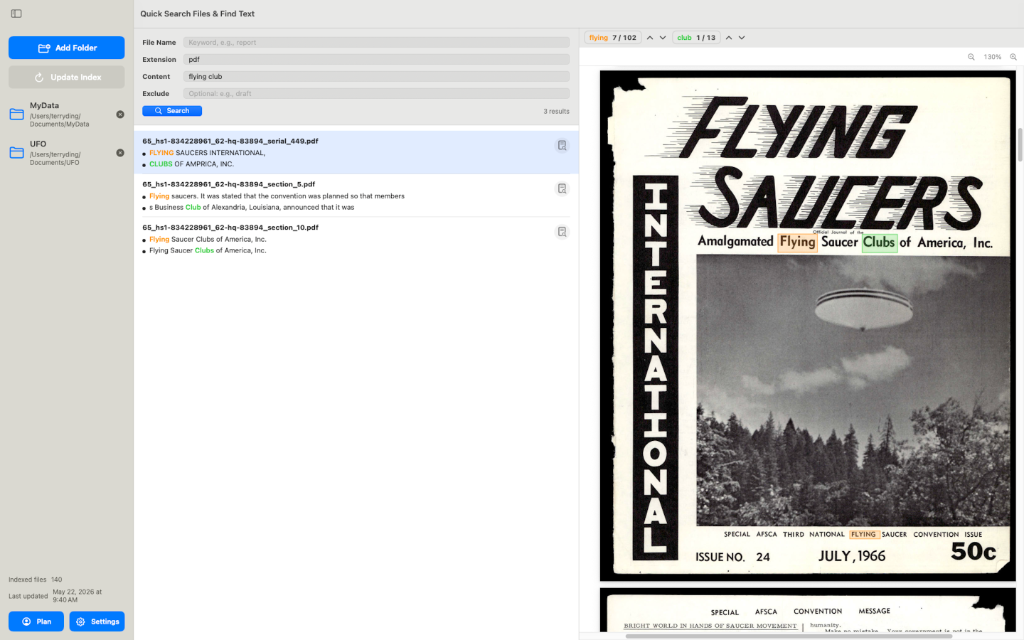
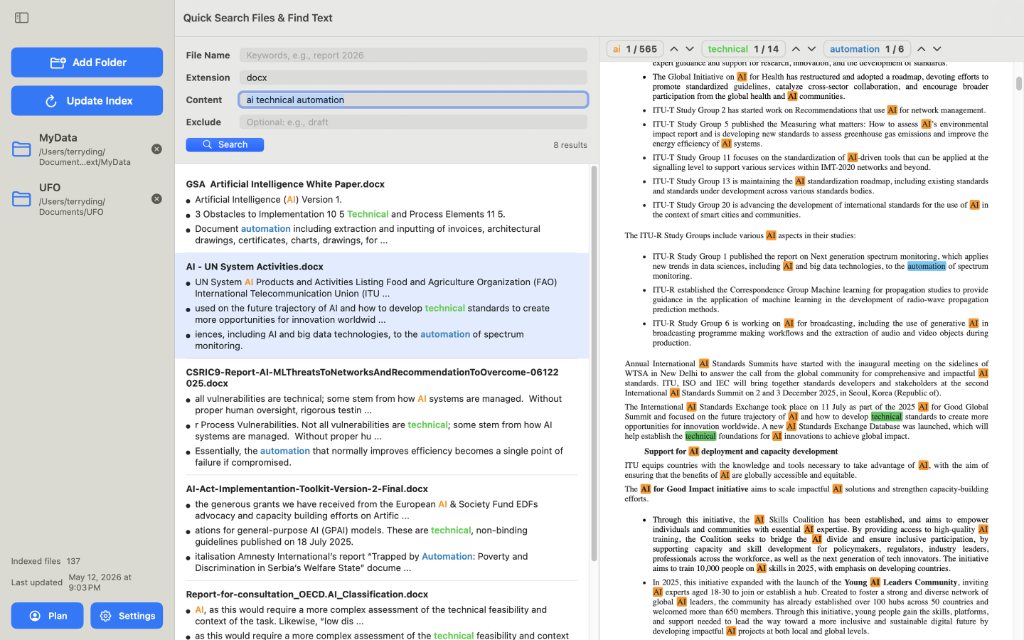
Search by file name, file type, document content, and exclude words. Preview matching passages before opening the file.
Search fields
Use one field for a broad search, or combine fields when you know the format, file name, and words inside the document.
Search remembered names, years, projects, clients, or document types, then narrow by formats such as PDF, Word, spreadsheet, presentation, text, or web files.
Search for words inside documents and remove unwanted matches such as drafts, templates, archived copies, or unrelated versions.
Search up to three content keywords together. Different highlight colors make each term easier to spot in results and previews.
Review the matching passage first, then open the original file, reveal it in Finder, or copy its path.
Optical Character Recognition (OCR)
Optical Character Recognition (OCR) helps Find Text search text that is visible in images but not selectable as normal document text.
Search printed pages that were scanned as PDFs, including old paperwork, reports, forms, and manuals.
Find names, places, quotes, and topics inside English newspaper clippings, old book pages, and archival scans.
Search text captured in phone photos, screenshots, receipts, notes, and images exported from other apps.
App preview
The result list and preview pane help you confirm the right file before opening it.
Guides
Short guides explain how to search inside documents, use OCR, and combine multiple keywords without getting lost in a large folder.
Find contracts, notes, reports, and archived documents by the text they contain.
Make scanned PDFs, old books, English newspapers, and images easier to find.
Search multiple terms and scan colored highlights in results and previews.