- Find Text
- Command line tool
Command line tool Pro
Search inside your files from Terminal.
The find-text command, or the short ft, searches the same local index as the app. Use it in Terminal, shell scripts, and AI tools, with plain text, file path, or JSON output.
Set up
The command line tool is part of Pro. Folders are added only in the app, so add and index your folders there first.
- Open Find Text and go to Settings > Command Line Tool.
- Turn on Command Line Tool, then click Copy Setup Command.
- Paste the command into Terminal and press Return.
- Run
ft statusto check that it works. In Terminal windows that were already open, open a new window first.
What the setup command does: it creates a small launcher at ~/.local/bin/find-text, plus the short name ft, that runs Find Text's own executable. If needed, it adds ~/.local/bin to your PATH in ~/.zprofile.
Nothing else is downloaded or installed, and the app never runs shell commands by itself.
Commands
| Command | What it does |
|---|---|
ft search <words…> | Search file contents, and names, in the Find Text index. |
ft status | Show the indexed folders, the number of indexed files and when they were updated, content documents and pages, OCR results, and files still waiting to be read. Add --json for JSON. |
ft update | Rescan the folders added in the app and read new or changed files, like Update Index. Progress is shown in Terminal; add --quiet to hide it. |
ft help | Show every command and option. |
find-text and ft are the same tool. Use whichever you prefer.
Search options
Options match the fields in the app, so a search you build in the window can be repeated from Terminal.
| Option | What it does |
|---|---|
--name <words> | Only files whose name matches all the words, like the File Name field. Add --name-or to match any of them. |
--ext <ext> | Only these file types, such as pdf or "pdf docx", like the Extension field. |
--exclude <words> | Leave out files that contain these words, like the Exclude field. |
--or | Content can match any of the words. By default a file must contain all of them. |
--limit <number> | Show at most this many results. |
--json | Print JSON with snippets and PDF page numbers, for scripts or AI tools. Add --compact for one line. |
--paths-only | Print file paths only, one per line, ready to pipe into other commands. |
--update-first | Run update before searching. |
How words match: words of three or more letters or digits also match inside longer words, so 4401 finds PN-44017. Shorter words match whole words. End a word with * to match its start, so ap* finds apple and approval.
Without content words, search matches file names only, using --name and/or --ext.
Output
- Text (default): a numbered list with each file's name and full path. When
--limitcuts the list, the last line says how many results there are in total. - Paths (
--paths-only): just the paths, one per line. - JSON (
--json): the search, the total and returned counts, and each result's path, file name, snippet, score, and page number. Page numbers are included for PDFs only.
~ % ft search agreement --ext pdf --limit 1 --json
{
  "content" : "agreement",
  "exclude" : null,
  "extensions" : [
    "pdf"
  ],
  "fileName" : null,
  "matchMode" : "and",
  "results" : [
    {
      "fileName" : "Signed Agreement - Scan.pdf",
      "page" : 1,
      "path" : "/Users/Shared/FindTextDemo/Work/Scans/Signed Agreement - Scan.pdf",
      "score" : …,
      "snippet" : "SIGNED AGREEMENT …"
    }
  ],
  "returned" : 1,
  "total" : 4,
  "truncated" : true
}
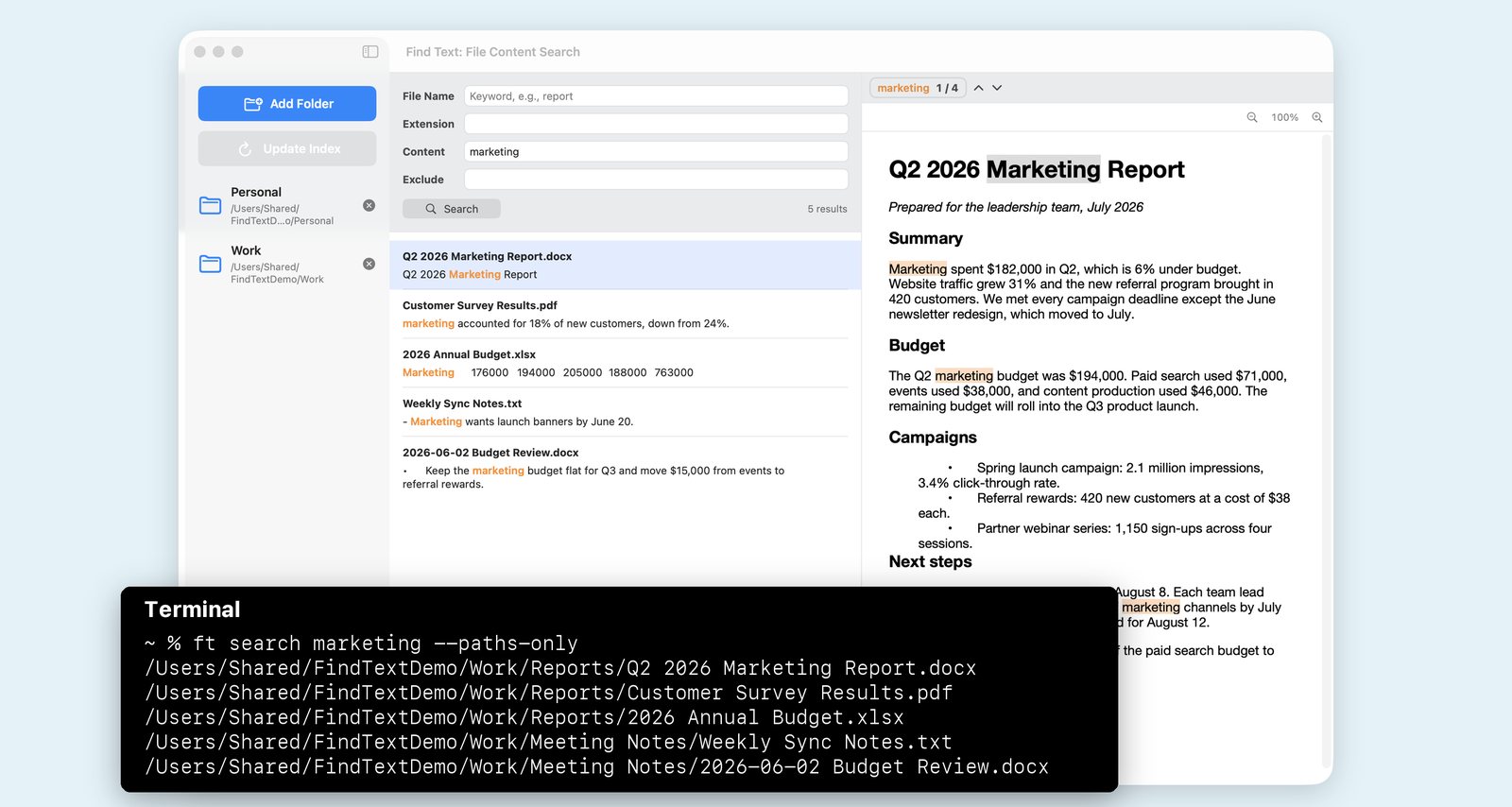
ft search marketing --paths-only prints the same results as the app, one path per line.Examples
Search for two words
~ % ft search budget Q3
1. 2026 Annual Budget.xlsx
   /Users/Shared/FindTextDemo/Work/Reports/2026 Annual Budget.xlsx
2. Q2 2026 Marketing Report.docx
   /Users/Shared/FindTextDemo/Work/Reports/Q2 2026 Marketing Report.docx
3. 2026-06-02 Budget Review.docx
   /Users/Shared/FindTextDemo/Work/Meeting Notes/2026-06-02 Budget Review.docx
4. Whiteboard - Launch Plan.jpg
   /Users/Shared/FindTextDemo/Personal/Whiteboard - Launch Plan.jpg
Combine file name, content, and exclude
~ % ft search payment --name invoice --exclude draft
~ % ft search agreement --ext pdf   # includes scanned PDFs read with OCR
~ % ft search launch --exclude invoice
Use the results in a script
# Open every PDF that mentions "renewal"
~ % ft search renewal --ext pdf --paths-only | while read -r f; do open "$f"; done

# Save JSON results for another tool
~ % ft search contract lease --or --json > results.json

# Refresh the index, then search
~ % ft search 4401 --update-first --limit 10

# File names only: every PDF or Word file with 2026 in its name
~ % ft search --name 2026 --ext "pdf docx"
Use it with AI tools
AI coding assistants and agents that can run Terminal commands can call ft search ... --json to find the right documents on your Mac. The command reads your local index. What happens to its output after that depends on the tool you pass it to.
Troubleshooting
ft: command not found
Open a new Terminal window so it picks up the PATH line in ~/.zprofile. If it still isn't found, run the setup command from Settings > Command Line Tool again.
"Command line access is disabled" or "requires Pro"
Open Find Text > Settings and turn on Command Line Tool. The tool needs an active Pro plan. If you already have Pro, open the app once so it can refresh your Pro access.
"No index yet"
Open Find Text, add folders, and click Build Index. The command line tool searches the index the app builds.
New or changed files don't show up
Run ft update, or click Update Index in the app. With Pro, automatic index updates can keep the index current for you.
How do I search a different folder?
Add the folder in the app and build the index. The command line tool searches the folders you added in the app and can't add folders itself.
How do I remove the command line tool?
Turn off Command Line Tool in Settings, then delete ~/.local/bin/find-text and ~/.local/bin/ft. You can also remove the PATH line the setup added to ~/.zprofile.
Need help?
See the support page or email terryting991@gmail.com. The command line tool comes with Pro. Compare Basic and Pro.